
| Features | Free Version | Paid Version |
| Multiple Sliders | No | Yes |
| Remove Copyright | No | Yes |
| Limit Images | 7 | Unlimit |
| Effect | Random only | Specific & Multi choice |
| Folder Source | 1 folder | Multiple folders |
| Phoca Source | No | Yes |
| JoomGallery Source | No | Yes |
FEATURES:
- Slide image in Folder
- Support create multiple modules/plugin on one page.
- Easy to change size of module.
- Config number of images can be displayed.
- Set width of module in pixel or percent.
- Use arrows to next or previous slider.
- Customize time display for one image.
- Multi specific select image folder for slide.
- More than 20 effect transition.
- Multi select effect.
- On/Off : tools, focus, play/pause, random slider, control, progress bar, copyright…
- Change navigation style : thumbs, number, dots
- Change position of focus, play/pause button, number/dots align
SETUP
Login to Joomla Control Panel page as Administrator
- Choice Extension>Module Manager.
- Click New.
- Choice Avatar Slide Skitter.
Set the parameter for your Module:
Source Setting
- Select folder : choice image folder. Hold Ctrl for multi choice folder
- Select max items can be displayed
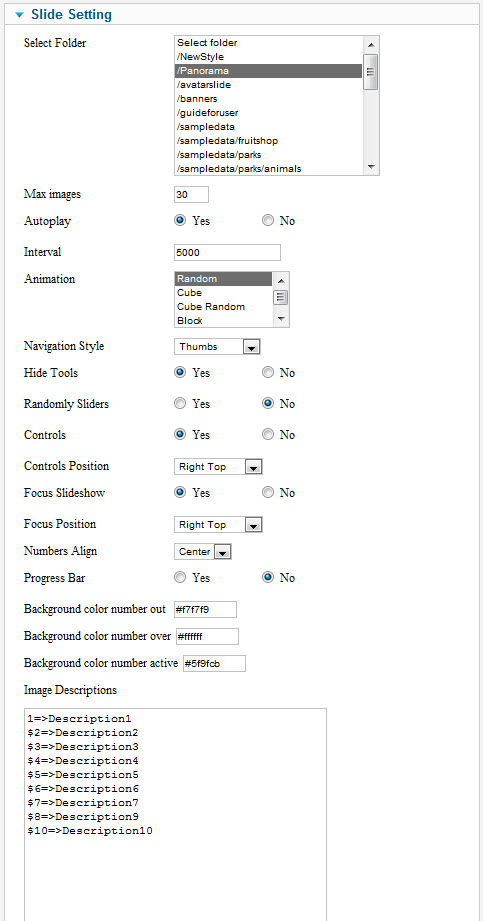
Slide Setting
- Set interval (Seconds)
- Set width & height for module: example 100% or 100px for width, 100px for height
- On/Off : tools, focus, play/pause, random slider, control, progress bar, copyright…
- Choice animation (effect) Hold Ctrl for multi animation
- Choice Navigation Style: Thumbs, Number, Dots. Preview.
- Choice Position of buttons controls, focus.
- Choice Number/Dots Align.
PLUGIN CONTENT SYNTAX
Insert this syntax to your joomla’s articles.
{avatarskitter options=…/}
Example :
{avatarskitter path=Test width=70% height=300px count=15 tool=true auto=false navstyle=numbers/}
Options :
- count : Number of image
- path: image folder in …/images/(Example: path=albums/halloween)
- height : Height of slide (px/%)
- width : Width of slide (px)
- auto : (true/false) Sets whether the slideshow will start automatically.
- animation : Defines what animation to use (example : “animation:random”,”animation:cube,cubeRandom,showBars”)
- List animation: cube, cubeRandom, block, cubeStop, cubeHide, cubeSize, horizontal, showBars, showBarsRandom, tube, fade, fadeFour, paralell, blind, blindHeight, blindWidth, directionTop, directionBottom, directionRight, directionLeft, cubeStopRandom, cubeSpread, cubeJelly, glassCube, glassBlock, circles, circlesInside, circlesRotate, cubeShow, upBars, downBars, hideBars, swapBars, swapBarsBack, swapBlocks, cut, random, randomSmart.
- tools: (true/false) Hide numbers and navigation.
- random: Randomly sliders.
- navstyle: Navigation Style (example: “navstyle:thumbs”).
- numbers
- dots
- thumbs
- preview
- controls: (true/false) Option play/pause manually.
- controlspositon : Position of button controls (example: “controlsposition:rightTop”).
- center
- leftTop
- rightTop
- leftBottom
- rightBottom
- focus: Focus slideshow.
- focuspositon: Position of button focus slideshow.
- center
- leftTop
- rightTop
- leftBottom
- rightBottom
- numbersalign: Alignment of numbers/dots/thumbs.
- center
- left
- right
- progress: (true/false) Show progress bar.
- cr : (true/false) Show copyright
- jquery :
- unload : unload jQuery
- latest : latest version of jQuery (Default)
- specific version
- example: jquery=1.8.2 (load jquery 1.8.2)
jQuery Conflict Solution
- Module:
- Type in to the jQuery option box: latest/unload or specific version of jQuery
- Plugin:
- Add syntax "jquey=...."
- latest : load latest version of jQuery
- unload : unload jQuery
- version of jQuery: load specific jQuery version